How to Create a Fillable PDF Using AI in Minutes
Turning a flat PDF into a fillable, signable form used to mean manually dragging fields for every blank on every page. Signibly AI scans the document and places fields automatically — upload, review, and send in minutes instead of hours.
Why "just print it and fill it in" stopped being good enough
A huge share of everyday business paperwork still arrives as a flat, non-interactive PDF — a lease from a property manager, a supplier agreement from a vendor's legal team, an intake form from a government portal, or a scanned copy of something originally typed decades ago. None of these files have real form fields. Filling them in has traditionally meant printing, writing by hand, scanning back in, and emailing a photograph of a signature that looks nothing like a proper e-signature.
The manual alternative — opening a PDF editor and dragging text boxes and signature fields onto every blank by hand — is not much better once a document runs past a page or two. Someone has to find every underline, every "Name:" label, every checkbox, and every signature line, then position a field precisely enough that the printed text and the typed answer do not overlap. For a six-page lease or a twelve-page supplier contract, that is a genuinely tedious task that most small business owners keep putting off until the deadline forces it.
AI field detection removes that manual step almost entirely. Instead of a human hunting for blanks, a vision model scans the actual page images, recognises the visual patterns that indicate a field — lines, boxes, labelled blanks, repeated "Signature" and "Date" text — and places editable fields in those positions automatically. What used to take twenty or thirty minutes per document now takes the time it takes to upload the file and glance over the result.
It is worth being specific about what "fillable" actually buys you beyond convenience. A fillable PDF lets a signer type directly into a field on their laptop or phone rather than needing a printer and a scanner at all — which matters more than it sounds for anyone signing from a phone on a job site, in a car between appointments, or from a rental property that does not have a printer. Removing the printer requirement from the signing process alone accounts for a meaningful share of completed-vs-abandoned document rates in practice.
This matters most for the documents nobody wants to spend time on: routine intake forms, standard supplier paperwork, and repetitive agreements that arrive from someone else's legal team in a format you cannot control. You cannot ask every counterparty to send you a pre-fielded PDF, but you can turn whatever they send into a fillable, signable document on your end in a few minutes rather than a few reformatting sessions.
There is also a professionalism cost to the old way that is easy to underestimate. A client who receives a photographed, hand-filled PDF with a scrawled signature squeezed into a margin forms a quiet impression about how organised the business sending it actually is — fairly or not. A cleanly fielded, properly signed document sent through a real e-signature workflow signals the opposite, and it does so without anyone having to say a word about it.
Step 1: Upload the PDF
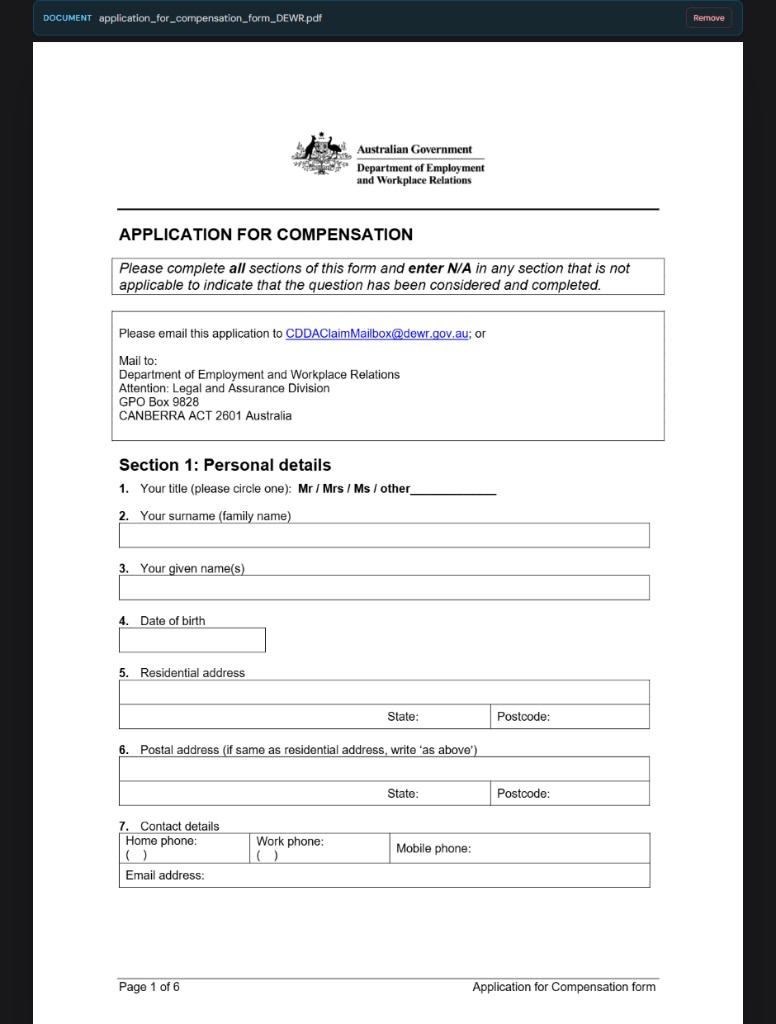
The process starts the same way it would in any document tool — you upload the PDF you need to turn into a fillable form. It can be a scanned paper document, a PDF export from another system, or a file a client, landlord, or supplier emailed you directly. Signibly does not require the source file to already contain interactive form fields; a flat, "print-ready" PDF is exactly the kind of file this feature is built for.
Once the file is uploaded, it is rendered as a set of page images inside the prepare workspace — the same workspace used for manually placed fields, AI-drafted contracts, and templates. This matters because it means AI-detected fields, manually added fields, and AI-drafted content all live in one editing surface rather than three separate tools with three separate learning curves.
Signibly AI scans up to 20 pages per run. Most everyday business documents — leases, service agreements, intake forms, NDAs, onboarding packs — comfortably fit inside that limit. For anything longer, you can split the document or handle the remaining pages with a second pass; the cap exists so that vision processing stays accurate on every page rather than getting rushed through an unbounded document.
There is no special file preparation required before upload. You do not need to flatten layers, remove existing (broken or partial) form fields, or convert the file to a particular PDF version first — a standard PDF export from a scanner, a word processor, or another party's document system uploads the same way any other document would. That "just upload what you were sent" simplicity is a meaningful part of the time saving, because the alternative workflows often start with someone trying to figure out why a PDF will not open correctly in a different fielding tool.
Step 2: AI detects the fields for you
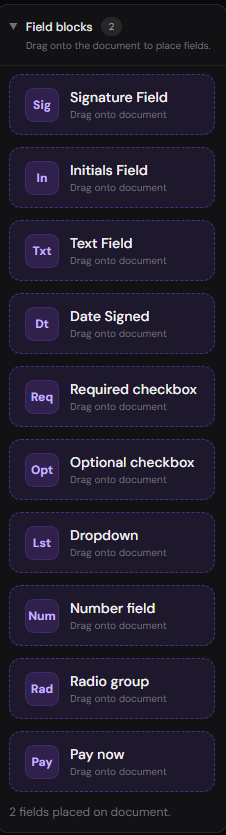
After upload, choosing Auto-generate fields hands the document to Signibly AI's vision model, which processes pages in high-detail batches of six. That batching choice is deliberate — many AI vision tools quietly downgrade detail on later pages of a long document to save processing cost, which means fields on page eighteen end up placed less accurately than fields on page one. Processing in fixed batches of six keeps every batch at the same high level of visual detail, so accuracy does not degrade as the page count grows.
Credits are consumed simply and predictably: one AI credit (or a free welcome field scan, where available) per six pages. A six-page rental agreement costs one credit. An eighteen-page supplier contract costs three. There is no separate per-field charge and no surprise cost spike for a document with unusually dense text — the unit is pages, in batches of six, which makes budgeting for a batch of onboarding documents straightforward.
The model looks for the visual signals that indicate a real field on the page — underlines after a label, boxed areas, repeated "Signature," "Date," "Name," or "Initial" text, and checkbox-style marks — rather than guessing based on headings alone. That distinction matters because printed section headings ("Section 4: Termination") are not fields, and a naive system that placed a field under every heading would create a mess of unusable boxes across the document.
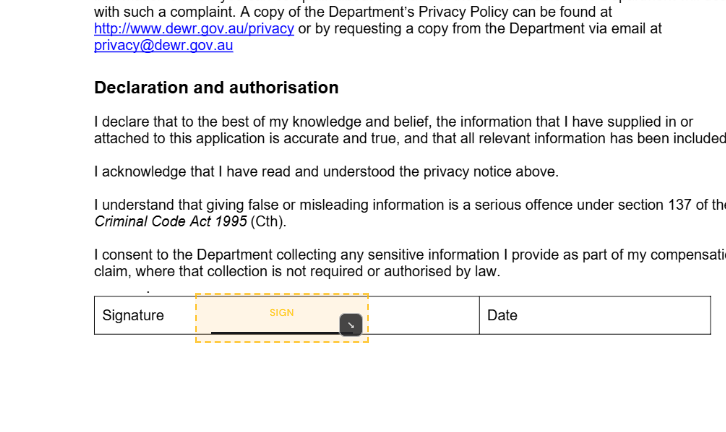
Field type inference is part of the same pass. A blank following "Date:" is placed as a date field rather than free text, a box beside a yes/no statement is placed as a checkbox, and a line under "Signature" is placed as an actual signature field rather than a plain text box that would let someone type their name instead of properly signing it. Getting field type right at detection time saves the more tedious correction of realising, after a signer has already completed a form, that a signature was accepted as typed text instead of a real signature capture.
Multi-party detection is where this becomes genuinely useful for real contracts. When a document contains multiple blocks for the same role — three separate "Client" signature lines for three co-tenants, or two "Guarantor" sections in a lease — Signibly AI assigns them as Client 1, Client 2, Client 3 and so on, each with a distinct colour, so it is immediately visually clear which fields belong to which signer without manually relabelling anything.
The batching approach also means the scan finishes in a predictable amount of time regardless of which pages happen to be the most visually complex. A document with a dense signature block on page two and a simple checkbox on page fourteen gets both processed within the same high-detail pass structure, rather than the system spending disproportionate effort on whichever page happens to load first and then rushing the rest — a subtle but real difference from tools that process pages independently without a consistent detail budget across the whole file.

Step 3: Edit and adjust the fields
AI placement targets the visible blanks on the page, but it is not asking you to trust it blindly — every field it creates is a normal, fully editable field in the same workspace you would use if you had placed it by hand. If a field lands a few pixels off from where you would prefer it, or the model catches a stray underline that was not actually meant to be a signature line, you drag, resize, retype, or delete it exactly as you would with any manually placed field.
This is also the point to double-check field types, not just field positions. A blank meant for a phone number should be a text field, not accidentally left as a date field; a signature block should actually be tagged as a signature field rather than plain text, or the signer will not get the proper signing experience when the envelope reaches them. AI detection generally gets these right because it reads the surrounding label text, but a quick scan before send catches the occasional mismatch.
Reviewing before send is worth treating as a real step in the process, not a formality — the same discipline that applies to AI-drafted contracts applies here. Open every page, confirm the party colours match who you actually intend to sign where, and check that nothing critical (a payment amount field, a start date, a signature block near the very end of a long document) was missed by the scan. AI placement is a strong first pass on a document, but the person sending it is still responsible for what actually goes out.
It is worth building a quick habit here: scroll through the whole document once at normal reading speed before you touch anything, noting any page where a field looks wrong, then go back and fix those specific pages rather than second-guessing every field on every page. Most scans need zero or one small adjustment; treating the review as a targeted check rather than a full re-placement keeps the time savings intact while still catching the occasional miss.
Step 4: Send for signature
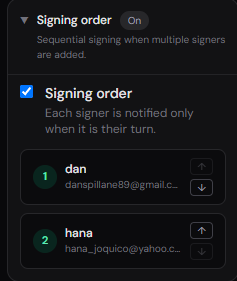
Once the fields look right, the fillable PDF becomes a normal Signibly envelope — the same sending experience as a manually built or AI-drafted document. You assign real names and emails to each coloured party, set a signing order if it matters (for example, tenant before guarantor, or employee before manager), and choose optional extras like SMS alerts, e-witness, or an audit trail depending on your plan.
Testing as each party before the real send is the same safety net that applies everywhere else in Signibly: preview the document exactly as "Client 1" or "Guarantor" would see it, confirm the field placement reads correctly on their side, and only then send it to the actual person. For multi-party documents with several coloured roles, this test pass is what catches a mismatched colour assignment before a real signer ever notices it.
After sending, the document behaves like any other envelope — you can track who has opened it, who still needs to sign, and get notified as completions come in. Once every party has signed, the completed fillable PDF sits alongside the rest of your signed documents, with the same audit trail and download options as anything else in the workspace, rather than living in a separate "forms" product with its own login.
Reminders matter more for fillable forms than people expect, because a longer document with several fields to complete is more likely to get partially started and then abandoned in a browser tab than a simple one-signature agreement. Automated reminders on outstanding envelopes recover a meaningful share of these stalled completions without you having to manually track who has and has not finished, which is especially useful for onboarding packs sent to several new hires in the same week.
Where multi-party fillable PDFs save the most time
Co-tenancy leases are a common real-world case: a landlord sends a flat PDF with three "Tenant" signature blocks meant for three different renters. Manually adding fields for this means noticing there are three near-identical blocks, correctly separating them into three distinct signers, and colour-coding them by hand so nobody signs in the wrong spot. AI detection does this automatically, recognising the repeated block and assigning Tenant 1, Tenant 2, and Tenant 3 with separate colours from the first scan.
Supplier and vendor agreements with a guarantor or co-signer follow the same pattern — a director signing personally alongside the company signature, or a guarantor block tacked onto a standard commercial lease. These documents often bury the second signature block on a later page, which is exactly the situation the six-page high-detail batching is designed to handle well, since later pages get the same scanning quality as page one.
Onboarding packs with multiple forms bundled into a single PDF — tax declarations, superannuation or retirement fund choice, emergency contact details, and a policy acknowledgement all in one file — benefit from the same auto-detection, turning what is normally a stack of separate fillable forms into one scanned, field-ready document a new hire can complete and sign in a single sitting.
Property management is another area where this compounds well over a year: a single agency might send out dozens of near-identical lease renewals, condition reports, and bond lodgement forms in a season. Because the underlying document rarely changes between tenants, the first AI-detected scan effectively becomes a reusable template — save it once fields are confirmed correct, and every subsequent renewal starts from an already-fielded base rather than a fresh scan each time.
Limitations to know before you rely on this
The 20-page scan limit is a hard boundary, chosen so that every page gets genuine high-detail processing rather than the model quietly cutting corners on an unbounded document. For anything longer — a lengthy franchise agreement or a full policy manual — split the document into logical sections or handle field placement on the additional pages manually inside the same workspace.
AI field detection is very good at finding visible blanks, underlines, and repeated labelled sections, but it is not infallible on unusually formatted documents — dense legal text with inline blanks, non-standard checkbox styles, or scanned documents of poor image quality can produce a field that needs nudging or a blank that gets missed entirely. This is exactly why the edit step exists, and why a full page-by-page review before send is worth the extra two minutes it takes.
Free welcome field scans are a one-time allowance and do not renew with a subscription; once used, further scans draw from your AI credit pool the same way AI contract drafting does, at the standard rate of one credit per six pages. Credits are shared across AI contract generation, field auto-detection, and receipt and invoice scanning, so it is worth checking your remaining pool before scanning an unusually long batch of documents in one sitting.
Finally, AI field detection places fields based on how a document looks and reads — it does not verify that the underlying document is legally correct, complete, or appropriate for your situation. A perfectly fielded lease with an unenforceable clause buried on page nine is still a lease with an unenforceable clause; the AI made it easier to sign, not necessarily safer to rely on. For high-stakes documents, pair the speed of auto-detected fields with the same legal judgement you would apply to any other contract before it goes out for signature.
Can AI make any PDF fillable, even scanned documents?
Signibly AI works from page images, so it can detect fields on scanned PDFs as well as digitally generated ones, provided the scan quality is reasonable and the blanks and labels are visually legible. Very low-quality scans may need a manual field check afterward.
How much does it cost to auto-generate fields with AI?
One AI credit (or a free welcome field scan, where available) per six pages, processed in high-detail batches so accuracy stays consistent across the whole document. An 18-page PDF costs 3 credits. Credits are shared with AI contract drafting and receipt and invoice scanning.
Does AI field detection handle documents with multiple signers?
Yes. When a PDF contains repeated blocks for the same role — several "Client" or "Tenant" signature lines, for example — Signibly AI assigns them as Client 1, Client 2, and so on, each with a distinct colour, so it is clear at a glance which fields belong to which party.
What is the maximum PDF length for AI field detection?
Up to 20 pages per scan, processed in high-detail batches of six pages so later pages are not treated with lower detail than earlier ones. Longer documents can be split into sections or finished with manually placed fields in the same workspace.
Do I still need to check the fields AI places?
Yes — treat AI placement as a fast first pass, not a final answer. Every detected field is fully editable, so review positions, field types, and party colours on every page before sending, especially on unusually formatted or lower-quality scanned documents.
Related
Signibly AI guide · E-Signatures · PDF review · For small business · Signibly vs PandaDoc · Pricing · Shelf-ware waste · Standalone tax · Hide unused features · Top 10 SMB software · FreshBooks vs Signibly · Track partial payments · DocuSign vs PandaDoc · AI document creation · PandaDoc vs SignNow · PandaDoc pricing 2026 · PandaDoc vs Adobe Sign · SignWell vs DocuSign · Signaturely vs DocuSign · Dropbox Sign & invoicing · eSignLive vs DocuSign · AI vs template contracts · Complete document workflow · PandaDoc vs DocuSign vs Signibly · Hidden cost of five business apps · Best AI contract generators · 50 business documents checklist · AI vs lawyers for contracts · Client onboarding guide · Build a paperless business · Switch to Signibly AI · Scan receipts & invoices · Replace multiple apps · All-in-one SMB software · Custom dashboards · All blog posts · All solutions · Compare vendors