How to Scan Receipts and Invoices with Signibly (Easy AI Guide)
Photograph a receipt or supplier invoice, let Signibly AI extract the merchant, total, date, tax, and categories, then save it straight into Expenses Hub — no separate receipt app required.
Why receipts and invoices both end up in the shoebox
Most small businesses do not lose money because they forget a big contract — they lose it in the pile of crumpled receipts and supplier invoices that never make it into the books. A coffee run, a hardware store run, a contractor invoice emailed as a PDF photo: each one is deductible (or reclaimable GST) only if you capture it before tax time turns into archaeology.
Separate receipt apps solve half the problem and create another subscription. Accounting tools often want you to type the line items. Signibly's receipt and invoice scanner sits inside Expenses Hub, so the same workspace that already holds your contracts, invoices, and payments can also turn a phone photo into a categorised expense in seconds.
This guide walks through how the scanner works, what it extracts from receipts and tax invoices, how AI credits are used, and how those records flow into tax / BAS summaries — without asking you to learn a second product.
Receipts vs invoices: the scanner handles both
A till receipt from a supplier is usually short: merchant name, date, line items, tax, total. A tax invoice from a trades supplier or freelancer is often longer, with an ABN or business number, itemised labour and materials, and clearer GST breakdowns. Signibly's AI is prompted to read either format — business receipts and tax invoices — and return structured fields you can review before saving.
You do not pick a different mode for "invoice" versus "receipt." Photograph or upload the page, run an AI scan (one credit), and review the extracted vendor, date, totals, tax amounts, and line items. If something looks off — a wrapped product name, a coupon line, a GST-free item — you edit it in the review step before it hits your ledger.
That matters for trades and project businesses especially: materials receipts and supplier invoices both need to land against the right job or category. One scanner, one expense list, one export for your accountant.
How to scan a receipt or invoice in Signibly
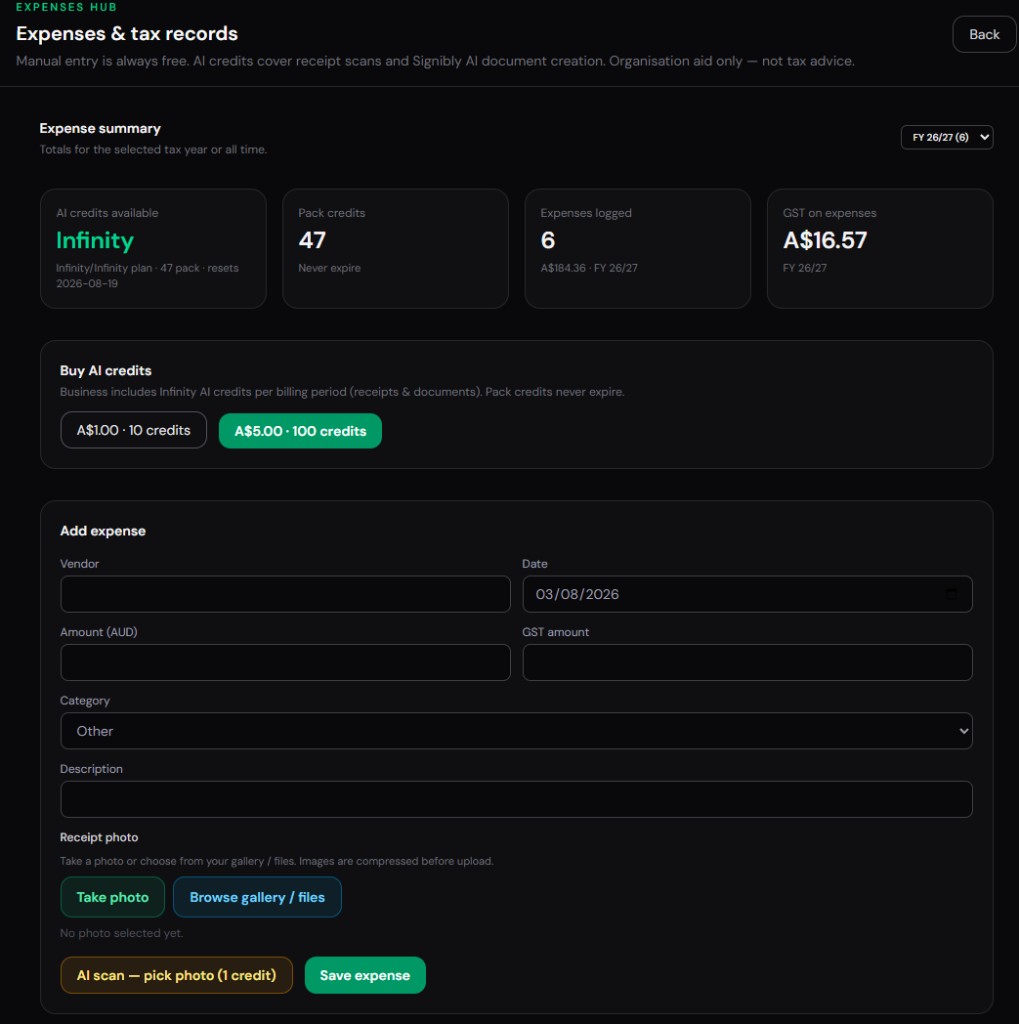
Open Expenses Hub from your dashboard (or the dedicated receipts view if you use that shortcut). Manual expense entry is always free — you can type amounts without scanning. When you want AI extraction, choose AI scan, pick a clear photo or upload, and wait a few seconds while the model reads the page.
Review the suggested vendor, expense date, totals, tax, categories, and claimable flags. Adjust anything that is wrong, then save. On Business, Signibly stores a compressed copy of the photo with the expense so you are not hunting through camera rolls at year end. Free plan users can still enter amounts manually; photo storage and AI scanning with storage unlock on Business.
Tip: shoot in good light, keep the page flat, and include the full total and tax lines. Long supermarket-style receipts with many line items work best when the whole amount column is visible — the model is instructed to extract every product before the subtotal, including duplicate lines and coupons.
What the AI extracts (and what you should still check)
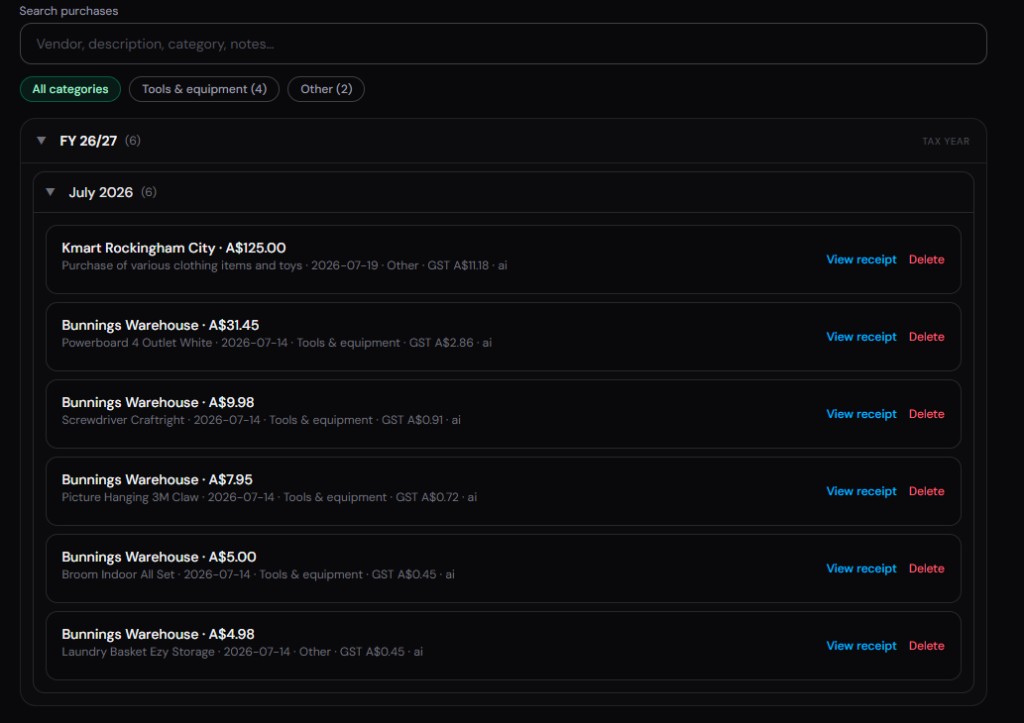
Typical fields include vendor name, expense date, receipt or invoice total, subtotal, tax total and rate, whether prices include tax, and per-line description, amount, taxable flag, category, and whether the line looks business-claimable. Markers on Australian-style receipts (GST symbols, GST-free lines) are treated carefully so tax is not smeared evenly across exempt items.
AI is an organisation aid, not tax advice. Always glance at the review screen — especially tax totals and personal-looking lines (groceries mixed into a hardware run, for example). Fixing a line before save is faster than explaining a wrong category to your bookkeeper later.
Categories map into Signibly's expense taxonomy so Tax / BAS Hub and CSV or accountant-pack exports stay consistent. Tagging expenses to a client or job where your workflow supports it makes "did that job make money?" answerable without a second spreadsheet.
AI credits, Business limits, and scan packs
Receipt and invoice scans share the same monthly AI credit pool as Signibly AI document drafting and field placement. Business includes 50 AI credits per billing period for normal use. Need more? Buy a trial pack or a larger pack — pack credits never expire and can be used for scans or document AI.
During a self-serve Business trial, published trial limits apply (including a small AI credit allowance). After the trial converts to paid Business, you get the full monthly pool plus unlimited envelopes and invoices under fair use, Invoice Hub, Payments Hub, Expenses Hub, and Tax / BAS Hub on the same plan.
Referrals: when someone buys the larger scan pack with your code, you both receive bonus credits. Manual expense entry never consumes credits — use AI when the photo would otherwise take longer to type.
From scanned expense to tax-ready records
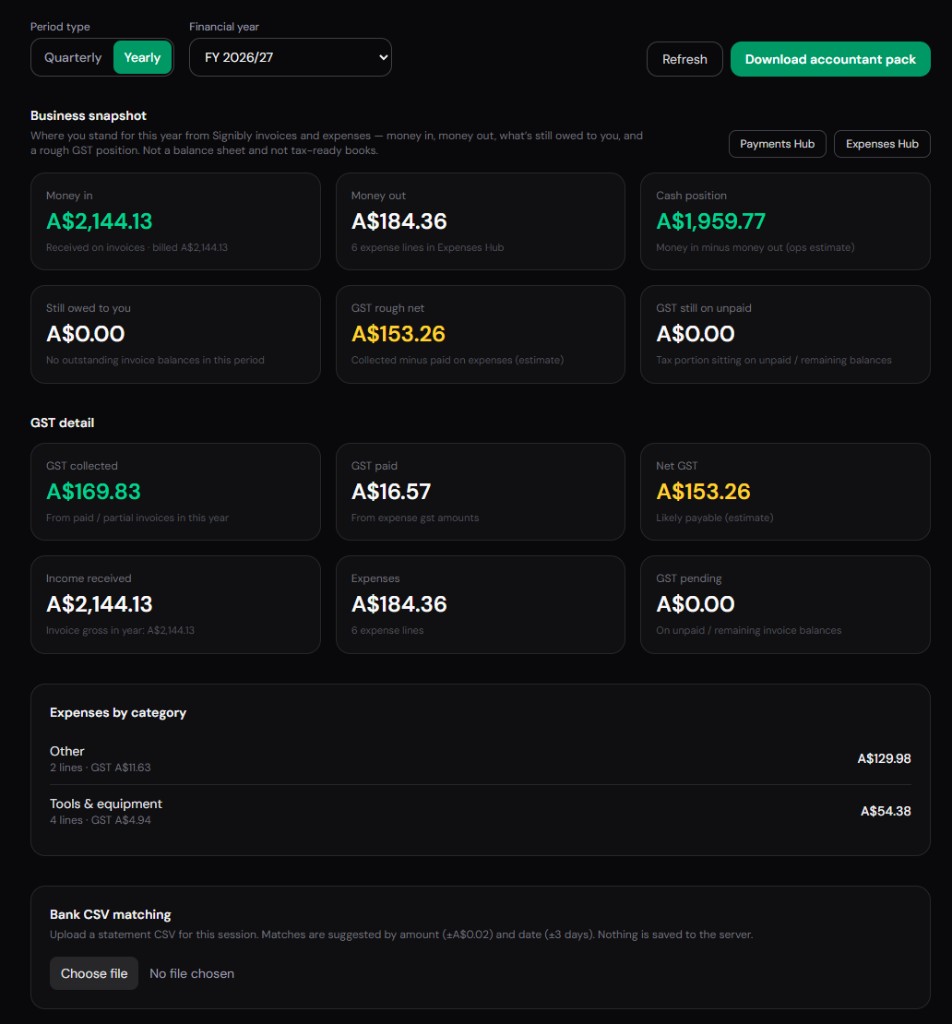
Captured expenses live in Expenses Hub with optional photo evidence. Tax / BAS Hub summarises money movement and GST-style markers so you can export cleaner packs for your accountant instead of forwarding a folder of camera shots.
Because signing, invoicing, payments, and expenses share one Signibly workspace, you are not re-entering the same client name across DocuSign, Xero, and a separate receipt app. That is the real time save — not just OCR speed, but one client record and one login.
If you are replacing Expensify-style capture or a phone-only receipt wallet, start by scanning this week's supplier invoices and till receipts into Expenses Hub, then turn on Tax / BAS export when you next meet your bookkeeper. Most teams feel the difference within one BAS or VAT cycle.
Who gets the most value from the receipt and invoice scanner
Trades and field businesses that buy materials daily and receive supplier invoices by email or paper. Consultants and agencies that reclaim travel and software receipts. Freelancers who invoice clients in Signibly and want expenses in the same place without paying for a dedicated receipt product.
If you already live in full desktop accounting and only need bank feeds, keep that system of record — Signibly is not trying to replace every ledger. If your pain is "contracts, invoices, and a shoebox of receipts in three apps," the scanner is one reason a single Business plan often costs less than the stack it replaces.
Ready to try it? Open Expenses Hub, run one AI scan on a clear receipt or tax invoice, and see the review screen before you commit to changing your whole expense process.
Can Signibly scan invoices as well as receipts?
Yes. The receipt and invoice scanner reads till receipts and supplier tax invoices from a photo or upload, then extracts vendor, amounts, tax, and line items for review in Expenses Hub.
How many receipt and invoice scans do I get?
Business includes 50 AI credits per month shared with document AI. Extra scan packs are available; pack credits never expire. Manual expense entry is always free.
Does the Free plan store receipt photos?
Free supports manual expense amounts. Compressed photo storage and AI scanning with storage unlock on Business. Keep your own copies on Free if you only need typed totals.
Is AI scanning tax advice?
No. Signibly helps organise expenses and tax markers for your records. Confirm figures with your accountant or tax adviser before filing.
Related
Expenses Hub · Tax / BAS Hub · Pricing · Hidden cost of five apps · Shelf-ware waste · Standalone tax · Hide unused features · Top 10 SMB software · FreshBooks vs Signibly · Track partial payments · DocuSign vs PandaDoc · AI document creation · PandaDoc vs SignNow · PandaDoc pricing 2026 · PandaDoc vs Adobe Sign · SignWell vs DocuSign · Signaturely vs DocuSign · Dropbox Sign & invoicing · eSignLive vs DocuSign · AI vs template contracts · AI fillable PDF guide · Complete document workflow · PandaDoc vs DocuSign vs Signibly · Best AI contract generators · 50 business documents checklist · AI vs lawyers for contracts · Client onboarding guide · Build a paperless business · Switch to Signibly AI · Invoice Hub · Payments Hub · Get paid faster · Invoicing with e-signatures · Contracts + invoices hub · Replace multiple apps · All-in-one SMB software · Custom dashboards · All blog posts · All solutions · Compare vendors